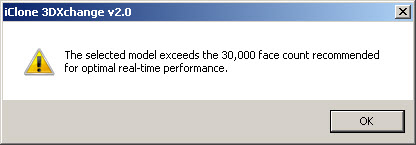
After discussion with Reallusion and considering comments made in some email received at this site it has become apparent that a lot of us are missing a very important part of 3DXchange and that is removing those pesky back faces from Sketchup models and thereby reducing the face count on the models for use in iClone. This tutorial will go through the simple steps needed to achieve this "face" saving procedure. --------------------------------- Download the Google 3D Warehouse Model Used in this Tutorial Here. --------------------------------- Import this model from Google 3D Warehouse into 3DXchange and you will get the dreaded face count warning:
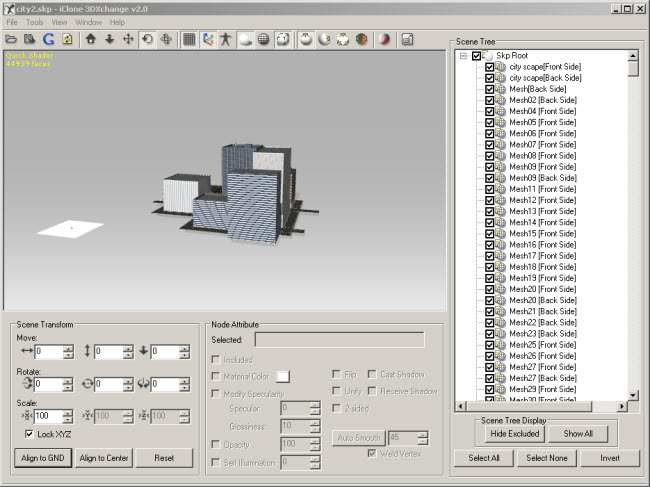
Model as imported:
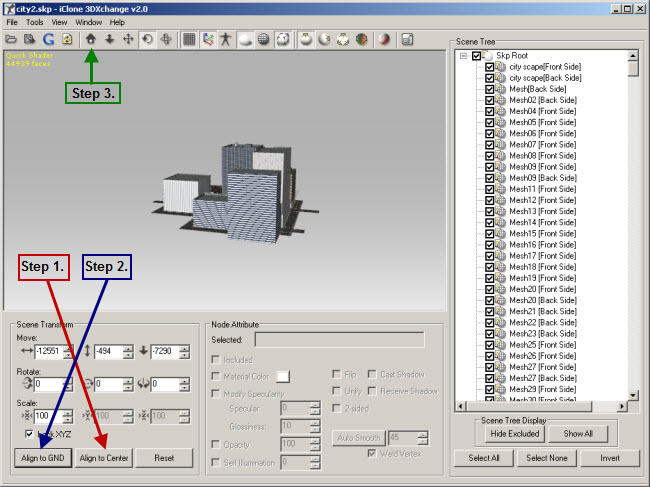
First Align to Center and Align to GND then press the Home button to center the model in the viewport::
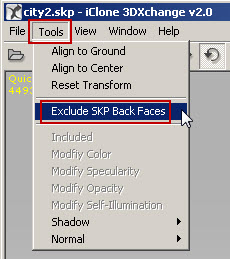
3. Now lets reduce the face (poly) count with the "Exclude SKP Back Faces" menu choice:
Notice the Original Face Count before exclusion:
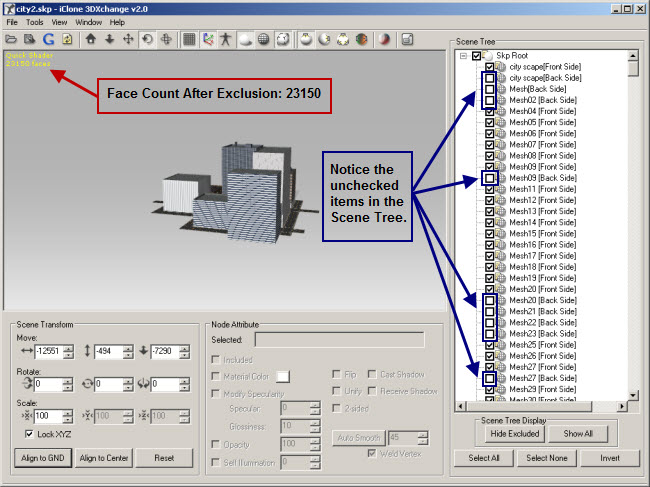
Now notice the face count after we have used the "Exclude SKP Back Faces" tool:
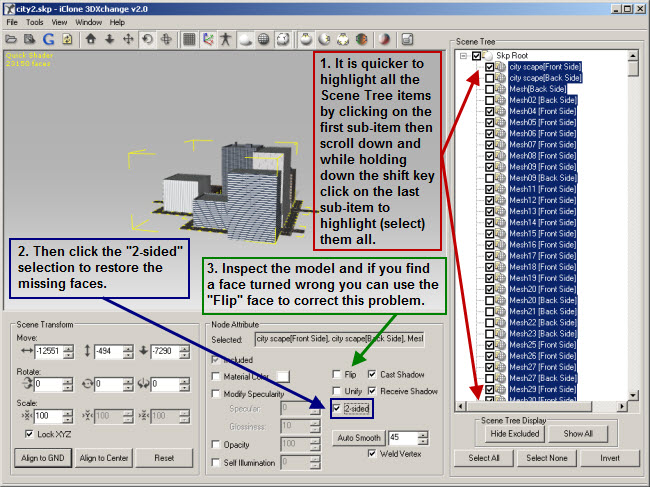
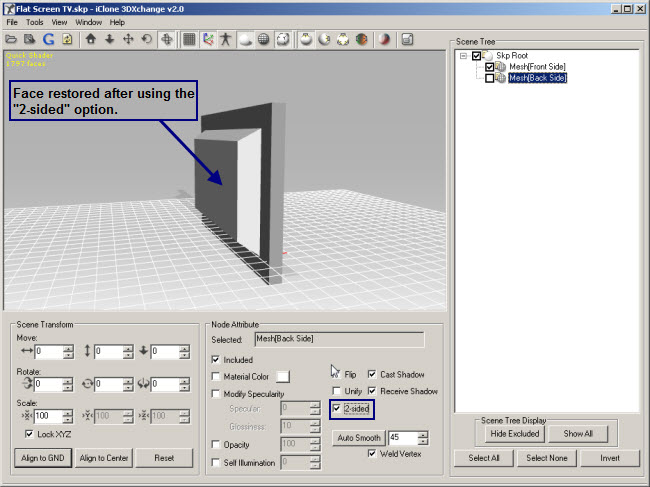
Now the downside is some of the backfaces you just removed may have been reversed by Sketchup during the creation of the model and parts of the model will "disappear". We can correct this with the 2-sided checkbox which will turn on the opposite face and restore it to the model or you may simply need to "Flip" the face. It is recommended that you highlight all the items in the Scene Tree and use the "2-sided" option. This is faster and you are sure to correct the proper face with all the items selected.
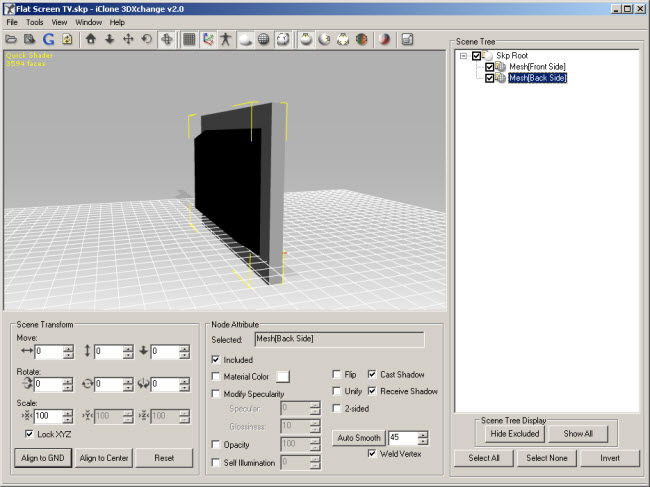
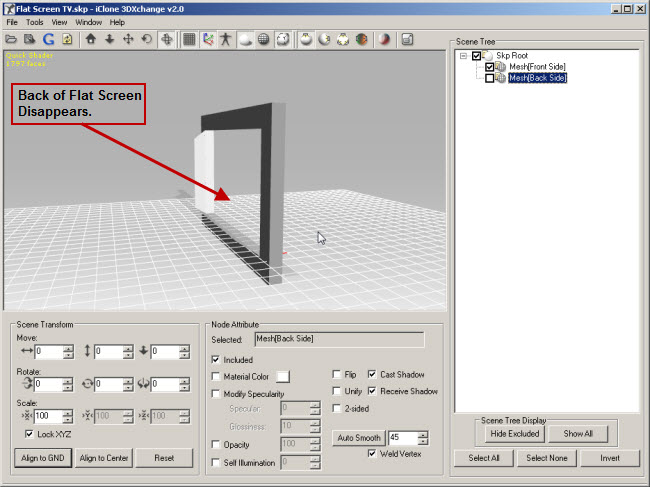
You are now ready to export the model for use in iClone. NOTE: In some cases it may desirable to "FLIP" the faces first then use the"2-SIDED" option if necessary. This will depend on how the model was made in Sketchup and can vary from model to model. There are also times when this massive 2-sided restore can have undesirable results so you may have to manually go down the list and experiment with some back meshes or other items using the "Flip" or "2-sided" checkboxes to get the desired results. Also the "2-sided" checkbox may be checked and greyed out at times. Just uncheck then re-check the checkbox to correct this situation. Another alternative if you are using a complex model or can't seem to get the desired results in 3DXchange would be to download the model in the free version of Sketchup and make the changes to the model in its native environment. You can also delete unused items of the model this way and further reduce the face count making a previously unusable model iClone friendly! --------------------------------- Below is an example of a missing backface when using the "Exclude SKP Back Faces" menu choice. When the TV model is facing forward you can't see the missing backface but it you see the TV model from the side or back the missing back face ruins the scene. Original Imported Flat Screen TV Model:
After exclusion:
Use the "2-sided" option to restore the face.
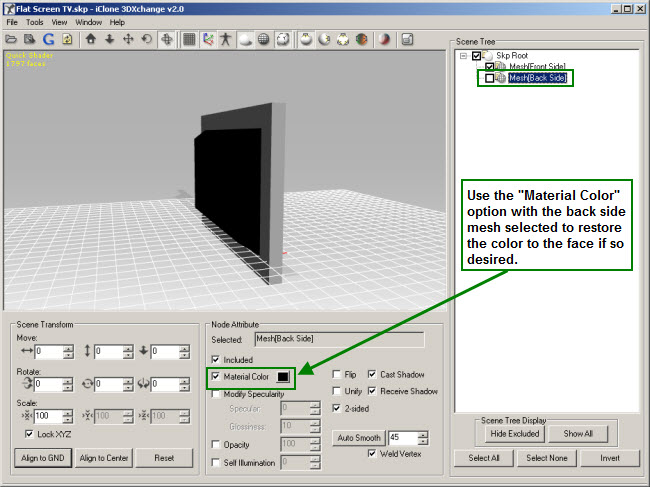
Next restore the color if desired:
Thats it. You may encounter models that take some time to prepare this way and every once in a while there may be a model you need to go into Sketchup to prepare then use 3DXchange to get it into the iClone format. It is a good idea to prep all Sketchup models this way as it will increase the performance of iClone and allow the use of more models in a scene. Thank you ! |
This Tutorial is Copyrighted 2008 by iCloneRevolution
This material may not be reproduced without the written consent of iClone Revolution.
The 3D Model, Sketchup source file or iClone project file created or used in this tutorial may
not be redistributed or sold without written permission from iCloneRevolution.
All Rights Reserved Worldwide.